Webhooks
Webhook Notifications
Webhook notifications are now available for all of our Watch products, including Script Watch, Data Watch, Frame Watch and Policy Watch. It's easy to configure and can be configured per Watch product.
Enable Webhooks
On any configured Watch product, you will now see a button for Alerts.
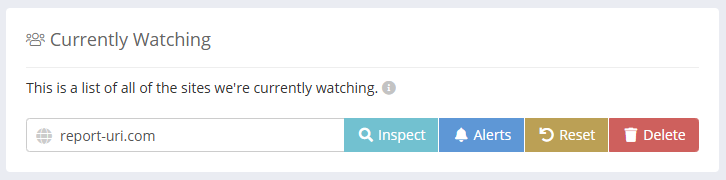
Clicking this button will open a modal to allow for configuration on how you are notified about new detections.
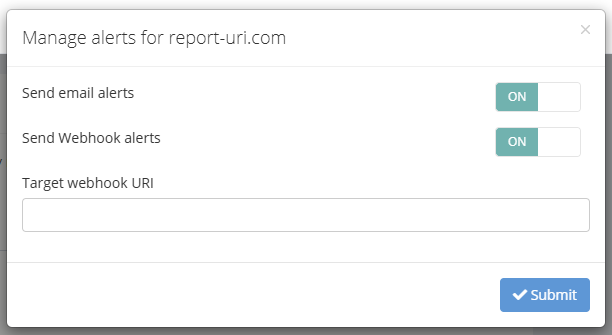
Please specify the full URI of where you would like your Webhook notifications to be sent.
Webhook Content
When sending a Webhook to a generic endpoint, the HTTP POST request will contain a JSON object that can contain the following values.
| Key | Value | When |
|---|---|---|
| text | Human readable text, used for audit trail | always |
| type | watcher identifier | always |
| monitored_domain | site being watched | always |
| first_seen | ISO 8061 timestamp of first report | always |
| policy | text of policy | policy watch |
| reportOnly | boolean | policy watch |
| blockedUri | observed URI | (script-data-frame) watch |
Here is an example payload.
{
  "text": "New Script Watch alert for report-uri.com : https://evil-cyber-hacker.com/malware.js",
  "type": "scriptWatch",
  "monitored_domain": "report-uri.com",
  "first_seen": "2026-01-07T13:37:00+00:00",
  "blockedUri": "https://evil-cyber-hacker.com/malware.js"
}
Slack Integration
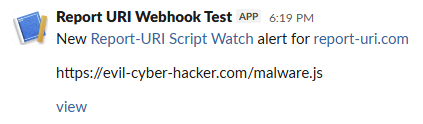
When the webhook endpoint is detected as a Slack endpoint, we will format the request to produce a Slack message.
To allow us to POST messages into a Slack channel you need to provide us the Webhook URL:
- Visit https://api.slack.com/apps
- Click "Create New App", choose "From scratch", provide an "App Name" and pick your "Workspace". Then, click "Create App".
- In the new app, click "Incoming Webhooks", switch the toggle to "On" and click "Add New Webhook".
- Select your "Workspace" and then "Channel for webhook", then click "Allow".
- You can now copy the "Webhook URL" and use this in your Report URI account.
Once this is set up, any new notifications will be sent as Slack messages to your Slack channel.
Email Notifications
You can now choose to enable or disable email notifications for any configured Watch product using the Alerts modal. Simply change the toggle for "Send email alerts" to "OFF".