Policy Watch
Policy Watch is designed to allow you to quickly and easily monitor the CSP your are delivering on your site. Requiring no additional setup, Policy Watch works by observing the copy of CSP sent with every violation report.
Getting Started
If you already have a CSP setup on your site, either in Enforce mode or Report-Only mode, you can get started with Policy Watch in just a few seconds. Head to the Policy Watch menu item located under the CSP menu in your account. Here you can see any sites you're currently monitoring the CSP for, or add a new site to monitor.
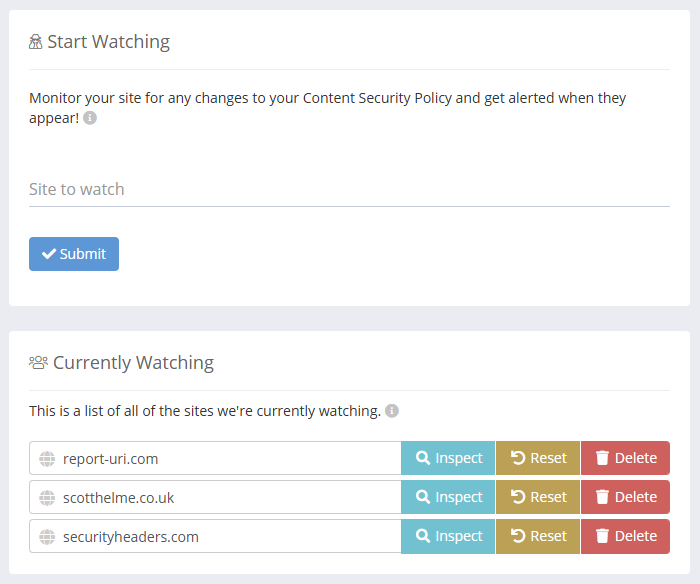
We allow granular control of the sites you wish to monitor and as an example, www.report-uri.com and blog.report-uri.com would be two different sites and monitored/alerted separately from each other. This means you can setup monitoring and only receive alerts for the areas of your site that interest you.
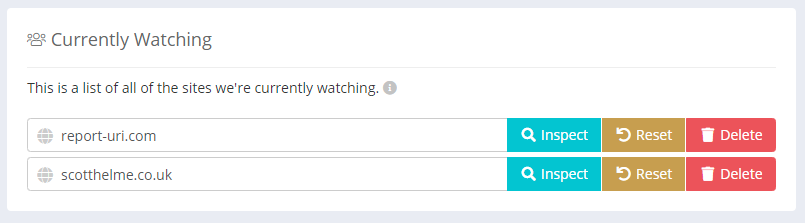
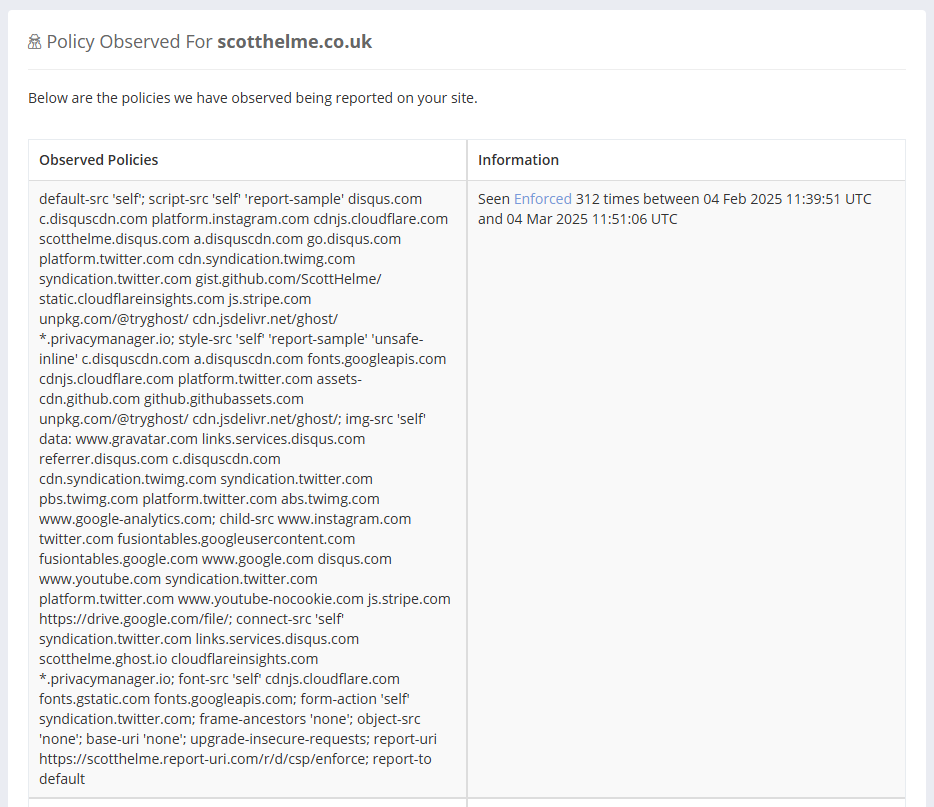
If you add a new site to be monitored by Policy Watch, we will start analysing all inbound reports for that site to monitor your CSP and send alerts when changes are detected. Policies for any given site can be viewed by clicking the Inspect button.
This will show all the Policies we have detected for your site.
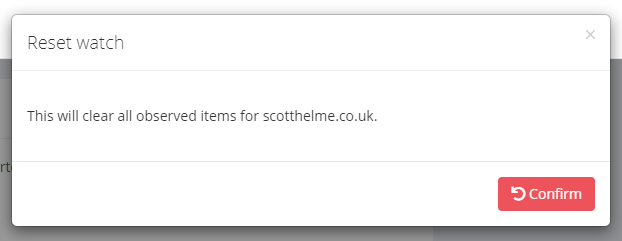
The Reset button will clear our list of observed Policies and start the monitoring process again. This may be helpful if you've made changes to your site or policy, or would like to begin monitoring from the beginning again.
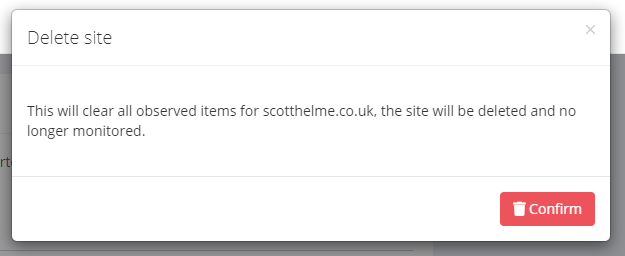
The Delete button will delete the site from Policy Watch, removing all data with it, and will stop ongoing monitoring and alerting for this site.
Policy Watch Setup
If you do not have an existing CSP on your site, there are several ways you can get started with Policy Watch.
If you would like to build a fully functional CSP first, then we recommend the CSP Wizard. Once you have a CSP setup you can then enable Policy Watch to monitor your reports.
The Reporting API
If you have set up the Reporting API on your site then you can use it to send CSP reports which will continue to be monitored via Policy Watch. Simply add the report-to directive to your policy as usual, there are no support considerations.
Threat Intelligence
Policy Watch analyses the sources permitted by each observed policy against our Threat Intelligence data, surfacing two types of risk directly in the Policy Watch UI.
Indicator of Compromise
An Indicator of Compromise, or IoC, is any piece of information that is evidence of malicious activity. Rather than waiting for a browser to block a request to a known-malicious host and report it, Policy Watch takes a proactive approach: it checks what your policy allows. If a script-execution directive (script-src, script-src-attr, script-src-elem, or default-src) permits a host that is known to be used for malicious activity, the policy will be flagged with an IoC badge in the UI.
This means you can catch the problem before a malicious resource is ever loaded — not just after a browser has already attempted to fetch it.
Policy Concern
A Policy Concern flags sources in your policy that are known JSONP endpoints or CSP bypass vectors. Sites that expose JSONP endpoints can be used by an attacker to execute arbitrary JavaScript even when your CSP appears restrictive, because the browser will load and execute the JSONP response as a script from a trusted host.
If a script-execution directive in your observed policy permits a host known to be a JSONP endpoint or CSP bypass vector, the policy will be flagged with a Policy Concern badge in the UI. If the source is restricted to a specific path (e.g. https://host.com/trusted-path/), the flag is suppressed — a path restriction closes the bypass vector by preventing the browser from reaching the JSONP endpoint at a different path. Unlike IoC, which is a host-level signal, Policy Concern is path-aware.
For more detail on Threat Intelligence signals, see the Threat Intelligence page.
Risk badges in the UI
When a policy is flagged, the affected source tokens are highlighted inline in the policy text, and a summary badge appears alongside the observation metadata for that policy row. If a flagged source was removed by the noise filter and does not appear in the displayed policy text, it is listed separately so you are aware of it.
Alerting
Policy Watch alerts when a new or changed policy is detected. Because the exact set of flagged hosts is part of the policy identity, a policy whose risk profile changes — for example, a previously clean policy now matches a newly added IoC entry — is treated as a new policy variant and will trigger an alert. The alert email includes the list of flagged sources so you can act without needing to log in.
Silence Alerts
Once a Policy Watch watcher has started receiving telemetry, you can opt in to be notified if it goes quiet. This is useful for catching cases where reports stop arriving unexpectedly — for example, the reporting endpoint has been removed from your security headers, the site has been reconfigured, or traffic to the monitored area has dropped off.
Silence alerts are configured per watcher in the Alerts section of the Config modal, alongside the existing alert settings. They are off by default — enabling existing watchers will not retroactively start firing alerts.
When enabled, you can choose a threshold of between 1 and 31 days. If no telemetry has been received for the watcher for longer than the threshold, an alert is sent. The default threshold is 7 days.
Once an alert has fired, it will not fire again until fresh telemetry has arrived for the watcher and then the watcher has gone quiet again. This means you will not receive repeated alerts for a watcher that remains silent — a single notification per silence period.
Silence alerts can be delivered via email, webhook, or both, using the same notification settings as the existing alert types.
Configuring a Watcher
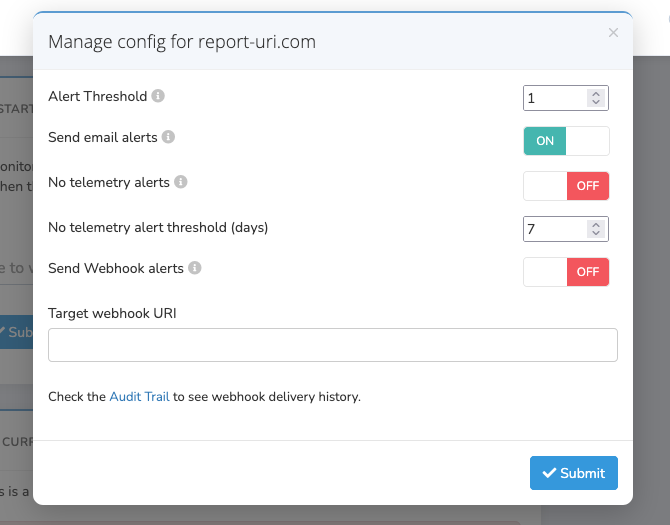
Every watcher has a Config button on its overview row, alongside Inspect, Reset, and Delete. It opens the Config modal, where you control how and when the watcher alerts you. Only a Team Owner or Team Admin can change these settings.
Alert Threshold
The number of new observations required before an alert is sent, from 1 to 100. The default is 1, so you are notified the first time a new or changed policy is detected. Raise it if you would rather only hear about a watcher once it has accumulated several new observations — useful on noisier sites where a single new entry isn't worth an alert. The threshold applies to both email and webhook alerts.
Send email alerts
Email alerts are on by default. Turn this toggle off to stop email notifications for this watcher while it keeps monitoring — for example, if you would rather receive webhook alerts only. Email alerts are sent to your account's notification address.
Send Webhook alerts
Available on Business plans and higher. Enable the toggle and set the Target webhook URI to receive an HTTP POST for each new detection. See the Webhooks page for the payload format and examples. Webhook delivery history is recorded in your Audit Trail.
No telemetry alerts
Policy Watch watchers can also alert you when a watcher that was receiving telemetry goes quiet. This control lives in the same modal — see Silence Alerts above for how it works.
The IoC and Policy Concern signals that Policy Watch surfaces per-policy are also shown on individual CSP violation reports. See Threat Intelligence for details on the report-page badges.
Useful Links
For more details on Policy Watch, check out the launch blog post: https://scotthelme.co.uk/report-uri-launching-policy-watch-and-other-improvements/
Start Monitoring with Report URI
Already using us? Manage your monitored sites on Policy Watch.
New to Report URI? Your 30-day trial includes Policy Watch along with every other feature; keeping it afterwards needs a Business plan or higher.