Two-Factor Authentication (Passkeys)
What are Passkeys?
Passkeys are a modern, phishing-resistant form of two-factor authentication that use your device's built-in authentication — such as Face ID, Touch ID, Windows Hello, or a hardware security key — instead of a 6-digit code. Once enabled, you will be prompted to verify with your passkey after entering your email and password.
Passkeys are more convenient than TOTP as there is no code to type, and more secure as they are bound to the specific website and cannot be phished.
You can enrol up to 20 passkeys on your account, which allows you to register multiple devices.
Setting up a Passkey
Head to the Settings page and click the Add Passkey button in the Authentication section.
A modal will appear where you can optionally give your passkey a name (up to 30 characters) and must enter your current password to confirm it's you. After clicking Register, your browser will prompt you to complete the passkey ceremony using your device authenticator.
On successful registration you will be shown a recovery code with an important warning. You must save this recovery code — it is the only way to regain access to your account if you ever lose access to all of your enrolled passkeys and your TOTP app.
Logging in with a Passkey
After entering your email and password on the login page, you will be taken to the two-factor authentication page. Click Use Passkey and your browser will prompt you to verify using your enrolled passkey. On success you will be logged straight in to your account.
Managing Passkeys
You can view and manage all your enrolled passkeys by clicking the Manage Passkeys button on the Settings page. This will show a table of your enrolled passkeys, each with the name you gave it and the date it was added.
Renaming a passkey
Click Rename next to any passkey to give it a new name. This is useful for keeping track of which passkey belongs to which device.
Removing a passkey
Click Remove next to any passkey to delete it. You will need to enter your current password to confirm. If you remove your last passkey and have no TOTP enabled, 2FA will be disabled on your account entirely.
Recovery Code
When you first enable a passkey, you are given a recovery code. This code is the only way to disable 2FA and regain access to your account if you lose all of your enrolled devices and cannot generate a TOTP code.
If you lose your recovery code, you can disable passkeys and re-enable them from the Settings page to generate a new one — provided you still have access to your account.
Losing Access to Your Account
If you can no longer use any of your passkeys and do not have your recovery code, you will not be able to log in to your account. Visit the Recover Account page during login and enter your recovery code to disable 2FA and regain access.
If you have lost both your passkeys and your recovery code, you will not be able to recover your account.
Requiring 2FA for Team Members
When creating a team, a Team Owner can require that all team members have 2FA enabled on their account to be able to access the data stored within the team.
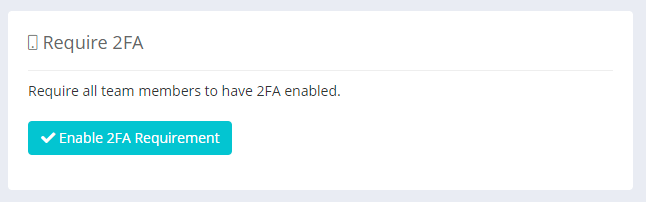
This option is available on the Teams page when you are actively switched into a team and can be configured per team.